




Sync Apple Calendar with Google Calendar (2026): Fix One-Way Sync
Sync Apple Calendar with Google Calendar the right way. Fix one-way sync, stop missing events, and keep all your calendars perfectly aligned.
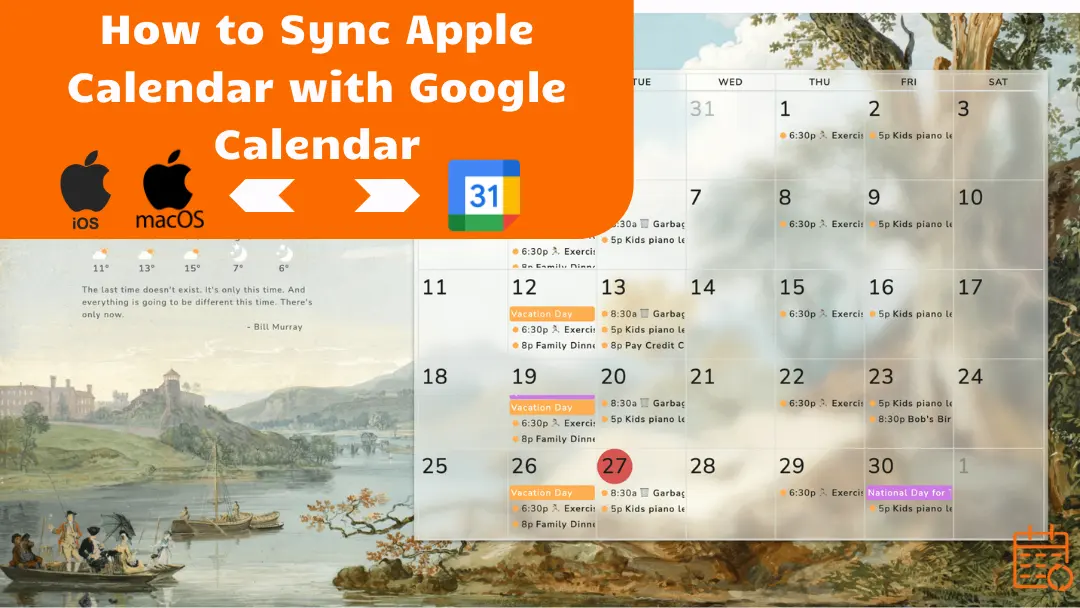
Trying to sync Apple Calendar with Google Calendar, but your events don’t appear in both calendars?
This is a common issue.
Sometimes the sync only works in one direction, and sometimes the calendars don’t connect at all.
You can sync Apple Calendar and Google Calendar in 2 main ways:
- by adding your Google account to Apple Calendar.
- by sharing your iCloud (Apple) calendar with Google Calendar.
Depending on the method used, the calendars may sync in one direction or both.
Below, we’ll walk through the easiest ways to sync both calendars and fix the most common problems.
Quick answer: You can sync Apple Calendar with Google Calendar by adding your Google account to Apple devices or by sharing your iCloud calendar with Google Calendar. Each method works differently, and some only sync events in one direction.
Can Apple Calendar Sync with Google Calendar?
Yes, Apple Calendar can sync with Google Calendar. But there are two different ways to connect the two calendars, because Apple and Google don’t provide the same type of access to their calendars.
1️⃣ When adding Google to Apple (Google → Apple).
Apple connects directly to Google Calendar. So Apple Calendar sees the Google calendar and can read and write to it.
👉 This is true two-way synchronization, which means that events remain synchronized between the two applications.
2️⃣ When you want to do Apple → Google.
Apple does not allow external services to connect directly to Apple Calendar. So the only thing Google can do is read a shared calendar.
👉 No, this is not true synchronization. It’s more like subscribing to a calendar.
🚨To sum up
People often think: Apple Calendar ↔ Google Calendar = complete synchronization. But in reality:
- Apple can connect to Google.
- Google can’t really connect to Apple.
My article on Top 5 Calendar Synchronization Apps might help you.
How to Sync Google Calendar with Apple Calendar
iPhone / iPad
The easiest way to display your Google Calendar in Apple Calendar on an iPhone or iPad is to add your Google account to your device’s settings. (We also have a full guide dedicated to syncing Google Calendar on an iPhone.)
Follow these steps:
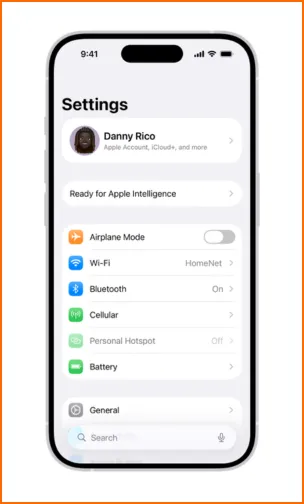
- Open the Settings app on your iPhone or iPad.
- Scroll down and tap Calendar.
- Tap Accounts, then select Add Account.
- Choose Google from the list of available services.
- Sign in with your Gmail address and password.
- When the sync options appear, make sure Calendars is turned on.
- Tap Save.
- Open the Apple Calendar app. Your Google Calendar events should now appear automatically.
💡 Tip: Your Google Calendar doesn’t appear in Apple Calendar? Make sure the calendar is enabled in the Apple Calendar app.
- Open the Calendar app on your iPhone or iPad.
- Tap Calendars at the bottom of the screen.
- Check that your Google calendars are selected. If they are not selected, the events won’t appear in Apple Calendar even though the account is connected.
Mac
On a Mac, you can display your Google Calendar in Apple Calendar by simply adding your Google account in your system settings.
Follow these steps:
- Click the Apple menu in the top-left corner of your screen.
- Open System Settings.
- In the left column, click Internet Accounts.
- Click Add Account.
- Select Google from the list.
- Sign in with your Google account.
- Make sure the Calendars option is enabled.
- Open the Apple Calendar app. Your Google Calendar events should now appear automatically.
💡 Tip: Your Google events don’t appear right away? Sometimes it can take a few minutes for new events to appear.
📍Note: Apple Calendar doesn’t store your events directly in the app. They are saved in iCloud, Apple’s online service.
Here’s how it works:
- You create an event in Apple Calendar on your iPhone or Mac.
- That event is saved in your iCloud account.
- All your Apple devices then retrieve that event from iCloud.
In simple terms:
- Apple Calendar = the app you use.
- iCloud = where the events are stored.
- Google Calendar = the other calendar that can read those events.
How to Sync Apple Calendar with Google Calendar
Syncing Apple Calendar to Google Calendar is a little more complicated than the other way around.
❓ Why? Because Google cannot connect directly to Apple Calendar.
🛠️ So how do you do it? You need to share your iCloud calendar, then add it to Google Calendar.
Don’t worry, I’ll walk you through the steps.
Step 1: Share your Apple (iCloud) calendar
You can do this from an iPhone, iPad, or Mac using the Apple Calendar app. Follow these steps:
- Open the Apple Calendar app.
- In the list of calendars, find the calendar you want to share.
- Click or tap the Share icon (or the “i” button next to the calendar).
- Enable the Public Calendar option.
- A public calendar link (webcal link) will appear.
- Copy this link, as you will need it to add it to Google Calendar.
💡 Tip: If the Public Calendar option is not enabled, Google Calendar will not be able to access your events.
Step 2: Add the calendar to Google Calendar
- Open Google Calendar in your web browser.
- In the left column, find the Other calendars section.
- Click the + icon next to this section.
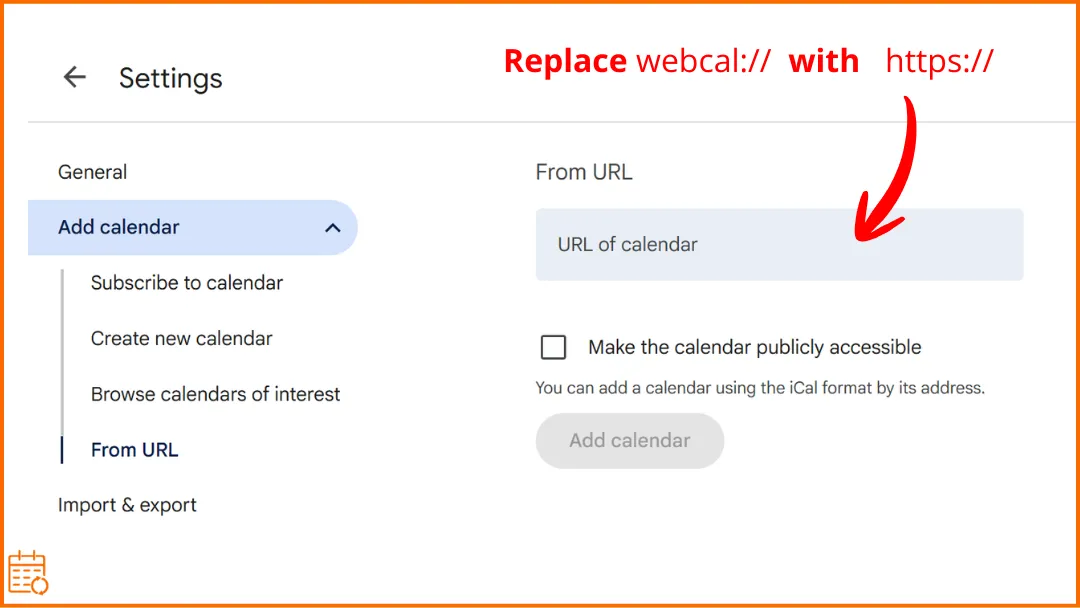
- Select From URL.
- Paste the link to your iCloud calendar (webcal link) that you copied earlier.
- Click Add Calendar. Your Apple calendar should now appear in Google Calendar.
- The option “Make the calendar publicly accessible” in Google Calendar does not need to be enabled.
💡 Tip: If your iCloud calendar link starts with webcal://, replace it with https:// before adding it to Google Calendar. Google Calendar handles HTTPS links more reliably.
📍The Google Calendar mobile app (iOS and Android) does not allow you to add a calendar from a URL. You must add the calendar using the web version of Google Calendar in a browser.
👉 Want these steps interactive, with the read-only and refresh-delay caveats spelled out? Our free add one calendar to another tool covers this iCloud → Google setup and every other provider pair.
Can You Sync Apple Calendar and Google Calendar Two-Way?
Yes, but not always automatically.
Some methods only sync in one direction. This is why some users notice that events appear in one calendar, but not in the other. In other words, the two calendars can see each other, but they don’t always update each other automatically.
| What you do | What syncs |
|---|---|
| Add your Google account to your iPhone or Mac | Google Calendar → Apple Calendar |
| Share your iCloud calendar and add it to Google Calendar | Apple Calendar → Google Calendar |
| Use both methods | ⚠️ Both calendars may appear, but changes don’t always sync both ways. |
If you want to avoid sync issues, the easiest solution is often to use Google Calendar as your main calendar. Create events in Google Calendar, then display that calendar in Apple Calendar on your iPhone, iPad, or Mac. This way, all your devices stay in sync.
💡 Tip: If you work with several calendars, you may also want to learn how to sync multiple calendars without conflicts.
If you need reliable two-way synchronization between calendars, the native methods described above may not always be enough.
Some tools are designed specifically to keep multiple calendars perfectly synchronized, even when they come from different services like Apple, Google, or Outlook.
For example, SyncThemCalendars allows you to synchronize calendars bidirectionally, so events created in one calendar automatically appear in the others.
This can be useful if you manage multiple calendars for work, personal life, or different companies.
Apple Calendar Not Syncing With Google Calendar
Events only syncing one way
If your events appear in Apple Calendar but not in Google Calendar, or vice versa, this usually means that synchronization is working in only one direction. In these cases, events may appear in only one calendar.
To understand how each method works, see the sections:
- How to Sync Google Calendar with Apple Calendar.
- How to Sync Apple Calendar with Google Calendar.
Apple Calendar sync delay
In some cases, synchronization may take a few minutes before the changes appear in the other calendar.If your events do not appear immediately, try:
- Refreshing or reopening the Calendar app.
- Checking your Internet connection.
- Waiting a few minutes to allow time for synchronization to complete.
In most cases, events will appear automatically after a short delay.
Google Calendar not showing Apple events
In most cases, the problem stems from sharing the iCloud calendar. Check the following points:
- The Public Calendar option is enabled in Apple Calendar.
- You have copied the iCloud calendar link correctly.
- The calendar has been added to Google Calendar using the From URL option.
If any of these steps are missing, Google Calendar will not be able to display Apple events. To set up this synchronization correctly, see the section How to Sync Apple Calendar with Google Calendar.
FAQ
Can you automatically sync Apple and Google calendars?
Yes, but it depends on how the calendars are connected.
- If you add your Google account to your iPhone, iPad, or Mac, Apple Calendar can sync automatically with Google Calendar. Events created in one app will appear in the other as long as they belong to the Google calendar.
- However, if you add Apple Calendar to Google Calendar using an iCloud link, Google can only read that calendar. In that case, events created in Google Calendar will not update Apple Calendar.
If you need events to stay synchronized between multiple calendars automatically, you may need a dedicated calendar synchronization tool such as SyncThemCalendars.
How long does Apple Calendar take to sync with Google?
If you notice a longer delay, see the Apple Calendar sync delay section above.
Google Calendar does not update external calendars (like iCloud) instantly. It may take several minutes or even a few hours before new events appear. If your Apple events don’t show up right away, wait for Google Calendar to refresh the subscription.
Can you merge Apple Calendar with Google Calendar?
Not exactly. Apple Calendar and Google Calendar cannot be permanently merged into a single calendar. However, you can:
- display both calendars together in the same app
- sync them, so events appear in both places
- import events from one calendar into another
💡 If you need to keep multiple calendars perfectly synchronized, tools such as SyncThemCalendars allow you to automatically synchronize events between Apple Calendar, Google Calendar, and Outlook.
☄️ Try SyncThemCalendars for free and keep all your calendars synchronized. Google, Apple, Microsoft, it supports them all!
Ready to sync your calendars?
Keep your Google, Outlook and Apple iCloud calendars in sync automatically. 2-minute setup, no credit card required.
Get started freeKeep reading
More in Tutorials
Export Outlook Calendar to Google: A 2026 Step-by-Step Guide
Learn how to export Outlook calendar to Google with clear steps for ICS and CSV imports, recurring-event checks, and verification tips that work in 2026.
How to Synchronize Outlook Calendar Across Platforms
Learn how to synchronize Outlook calendar events with Google and Apple iCloud. Master two-way sync, privacy controls, and real-time availability mapping.
How to Sync Office 365 Calendar with Apple Calendar
Learn how to sync Office 365 calendar with Apple Calendar. Compare native methods, third-party tools, privacy controls, and troubleshooting tips.