







How to Sync Google and Outlook Calendar in 2026
Learn how to sync Google and Outlook calendar with native tools, subscriptions, and real-time third-party solutions. Step-by-step guidance for every setup.
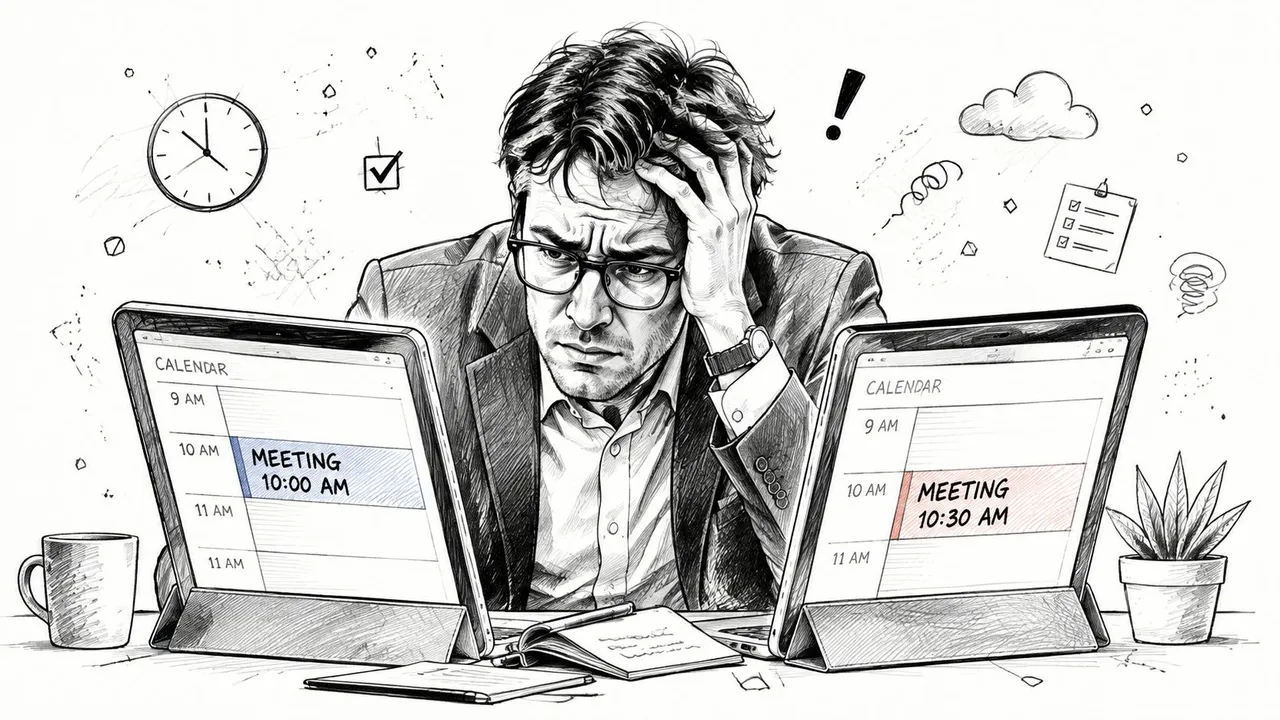
You accept a client meeting through Outlook, add a personal appointment in Google Calendar, and assume both systems will protect the same block of time. Then Outlook shows you as available, the client books over your personal commitment, and you discover that the “sync” was only a delayed, read-only calendar view.
That distinction matters. Viewing another calendar isn’t the same as synchronizing events in both directions, and neither option guarantees privacy, fast updates, or reliable conflict handling. The right way to sync Google and Outlook Calendar depends on whether you need availability visibility, event copying, bidirectional edits, or controlled sharing of sensitive details.
Why Calendar Sync Breaks Down in the Real World
A freelancer might use Google Calendar for personal appointments and a client’s Microsoft 365 account for project meetings. The client sees the Outlook calendar as authoritative, while the freelancer plans the rest of the day in Google Calendar. An ICS subscription can display one calendar inside the other, but it won’t necessarily tell the client that a new personal commitment has made an appointment slot unavailable.
That’s where the phrase calendar sync becomes misleading. A subscription usually imports a feed from a source calendar into a destination calendar. A true two-way connection lets changes made in either system move back to the other, with rules for duplicates, deletions, recurring events, and private information.
The three practical connection paths
Most users evaluating how to sync Google and Outlook Calendar will choose among three approaches:
- Native interoperability: Google Workspace and Microsoft tools can exchange selected availability and invitation information. This is useful when administrators control both environments, but it isn’t a universal two-way event mirror.
- ICS subscription: You publish one calendar and subscribe to its iCal feed from the other platform. It’s simple and appropriate for read-only visibility, but the destination usually can’t write changes back.
- Dedicated sync service: A connector copies events between selected calendars and can support one-way, two-way, or multi-way rules. This adds another service and permission layer, but it addresses workflows where stale availability creates real scheduling risk.
Practical rule: Decide whether you need a calendar view or a calendar relationship. If people must edit events from either side, a read-only subscription is the wrong tool.
Match the method to the person
A student who only wants an institutional schedule visible beside personal plans may be fine with a subscription. An executive who needs colleagues to see free/busy status without exposing appointment details needs stronger privacy controls. A consultant working across several client tenants generally needs controlled two-way or multi-way synchronization, because manually reconciling calendars leaves too much room for conflict.
The operational problem is orchestration, not merely display. Each platform has its own permissions, invitation behavior, event fields, and refresh rules. Before you connect anything, identify the source of truth for each calendar, decide which direction changes should travel, and define what recipients are allowed to see.
Native Sync Options Between Google and Outlook
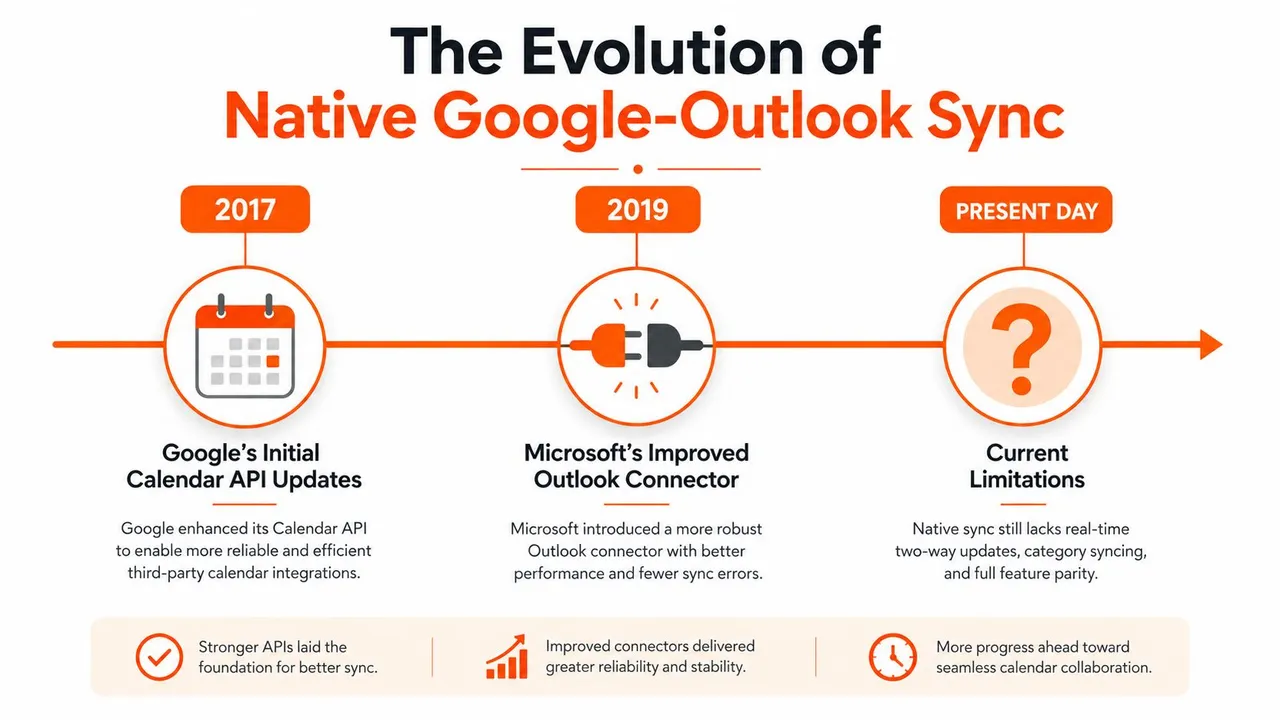
Google and Microsoft have gradually moved beyond basic calendar viewing. Google Workspace documented Calendar Interop for Microsoft Exchange in 2017, allowing users on the two systems to see each other’s free/busy information after domain-level configuration. Google’s documentation describes this as a way to exchange availability across Google Calendar and Exchange, helping organizations reduce double-booking without duplicating every event. The original Google Calendar interoperability update records that foundational step.
Google later expanded invitation handling in 2023. Outlook users with the same email address could receive Google Calendar invitations and RSVPs directly in Outlook, while Google Calendar could create default meeting reminders for Outlook recipients. On March 3, 2025, Google also described improvements to third-party calendar syncing, including more reliable processing of Microsoft’s TNEF email format, with the stated purpose of improving invitation handling and reducing unnecessary inbox clutter.
What native features handle well
Native features make sense when your requirement is availability exchange or invitation compatibility, not complete event replication. Google Workspace administrators can configure Calendar Interop at the domain level for Google Calendar and Microsoft Exchange environments. That can let users identify open and busy periods across systems while keeping each platform’s calendar infrastructure in place.
Outlook can also subscribe to a Google Calendar through its secret iCal address. Microsoft’s support guidance distinguishes this subscription from full automatic synchronization. In practice, Outlook can maintain an imported view, but edits made in that view don’t automatically become edits in the original Google calendar.
Google’s own support materials confirm that Google Calendar can work with other computer programs, including Outlook and Apple Calendar. That broad compatibility is helpful, but compatibility doesn’t remove the underlying differences between a shared availability layer, an invitation workflow, and a bidirectional event-copying system.
Where the native approach stops
Native interoperability is strongest when administrators manage the relevant accounts and users mainly need free/busy visibility. It becomes less suitable when you need:
- Reliable two-way editing across separate calendars.
- Near-real-time propagation of last-minute changes.
- Field-level privacy transformation, such as replacing an event title with “Busy.”
- Consistent handling of several personal, work, and client calendars.
- Predictable conflict rules when the same event exists in multiple systems.
For a deeper explanation of the difference between a calendar overlay and actual event movement, see this guide to Outlook Calendar sync. The important conclusion is simple. Native tools have improved meaningfully, but they don’t turn every Google and Outlook account combination into one unified, two-way calendar.
Setting Up an ICS Calendar Subscription
An ICS subscription is useful when you want one calendar to appear inside another and don’t need to edit the imported events from both platforms. It’s also the setup most likely to be mistaken for full synchronization, so label the connection clearly when you create it.
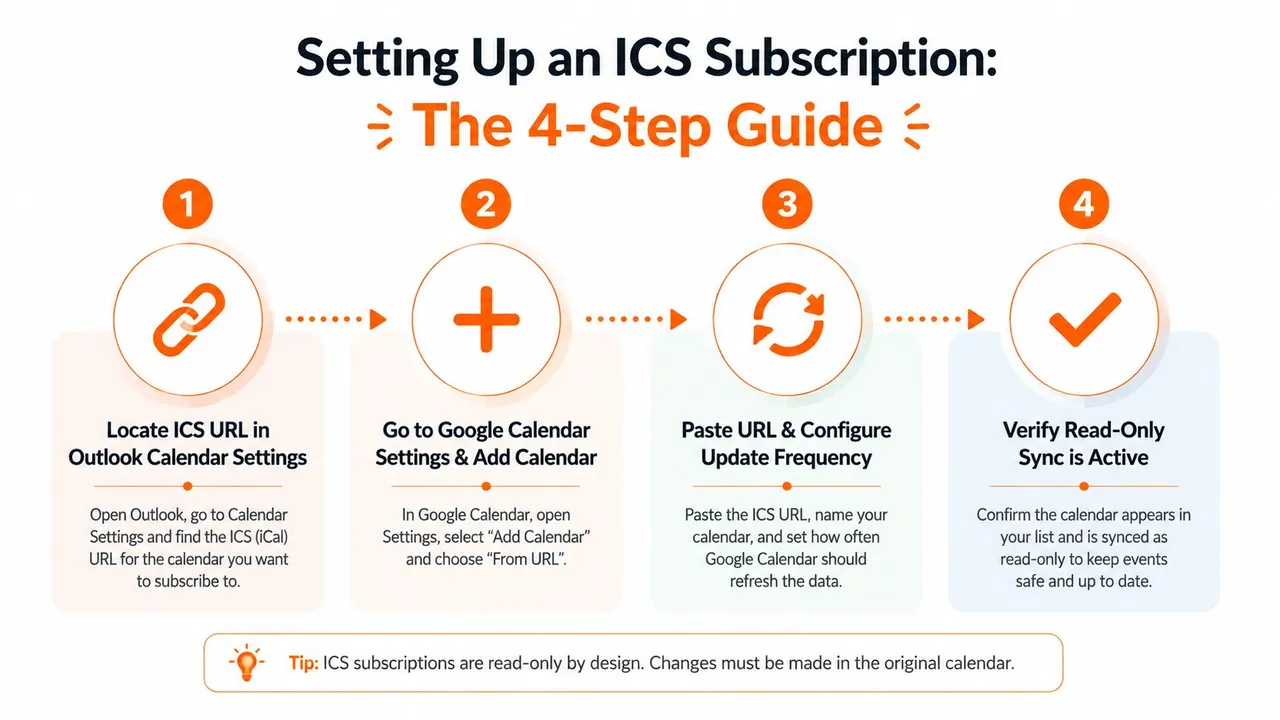
Subscribe to Google Calendar from Outlook
Start in Google Calendar:
- Open Settings and choose the calendar under Settings for my calendars.
- Find Integrate calendar.
- Copy the Secret address in iCal format. Treat this URL like a credential, because anyone who obtains it may be able to view the feed permitted by that address.
- In Outlook on the web, open Calendar, choose Add calendar, then select Subscribe from web.
- Paste the iCal address, give the calendar a recognizable name, choose its display settings, and save it.
In classic Outlook desktop, the route is different. Open Calendar, right-click Other calendars, choose Add Calendar, select From Internet, and paste the same feed address.
Subscribe to Outlook from Google Calendar
For the reverse direction, publish the Outlook calendar first. In Outlook on the web, open Settings, go to Calendar, then Shared calendars. Under Publish a calendar, select the calendar and the level of detail you’re willing to expose, publish it, and copy the ICS link.
In Google Calendar, select Add other calendars, choose From URL, paste the Outlook ICS address, and add the calendar. The result is a view of Outlook events inside Google Calendar, not a second editable copy of the Outlook calendar.
This ICS format guide for Google Calendar is useful when you need the exact menu path or want to understand why iCal feeds behave differently from account-level connections.
Here’s a short visual walkthrough of the subscription model:
Understand the hidden limitations
An ICS subscription is generally read-only. Changes made in the destination calendar won’t travel back to the source, so adding an Outlook event to an imported Google feed won’t create that event in Google Calendar.
Refresh timing is another weakness. Subscribed feeds may update only every few hours, which creates a dangerous gap for active scheduling. A newly added appointment can remain invisible long enough for someone to book over it. The connection can also stop updating when sharing permissions change, when an iCal address is regenerated, or when the wrong account owns the source calendar.
Microsoft documents a 20-calendar shared-calendar limit in its Google-to-Outlook cloud sync path, as described in the cited support context. That limit matters for users who try to solve a multi-calendar problem by adding every calendar as a separate shared connection.
Use ICS when you need a convenient read-only overlay. Don’t use it as the only protection against double-booking when your schedule changes throughout the day.
Real-Time Two-Way Sync with Third-Party Tools
A dedicated sync service fills the gap between native interoperability and an ICS subscription. The key difference is that the service creates explicit connections between source and destination calendars, then keeps processing changes in the background instead of waiting for a user to compare two views manually.
For a freelancer, the workflow might be Google Calendar to Outlook for personal blocks, Outlook to Google Calendar for client meetings, and a separate privacy rule that copies only availability details. A sales professional may need several account calendars visible to a central planning calendar. The useful configuration isn’t always one global two-way mirror. It’s often a set of narrowly defined connections with different directions and privacy rules.
A practical setup sequence
Using SyncThemCalendars as an example, the setup follows a straightforward pattern:
- Connect the calendar accounts. Authorize the Google and Microsoft accounts that contain the calendars you want to coordinate.
- Select source and target calendars. Don’t assume every calendar should sync with every other calendar. Start with the calendars that create the scheduling risk.
- Choose the direction. Use one-way copying when only one system should publish events, two-way synchronization when both sides need to reflect changes, or multi-way rules when several calendars must share availability.
- Set privacy behavior. Decide whether copied events retain titles, descriptions, and locations or become masked availability blocks.
- Test representative events. Create, move, update, and remove test events before connecting a busy production calendar.
SyncThemCalendars describes an estimated two-minute setup, background operation, unlimited events on its plans, and single-user access. Its plan structure includes Basic for up to 5 syncs, Premium for up to 16, and Professional for up to 36, as listed in the publisher information. It also offers a 14-day free trial without a credit card, which gives users a way to test permissions, event behavior, and privacy rules before committing.
What to verify before going live
Read the permission request carefully. A sync service needs calendar access to read events and create or update copies, but you should still confirm how it processes and stores calendar information. Review the provider’s privacy policy, authentication flow, account removal process, and handling of disconnected calendars.
For more context on continuous bidirectional scheduling, see this explanation of real-time calendar sync. The benefit isn’t just that events appear in two places. The benefit is that the connection reflects how you work, including different directions, multiple calendars, and privacy boundaries.
Protecting Privacy While Keeping Calendars Aligned
Availability often needs to travel farther than event details. A client may need to know that you’re unavailable, but not whether the block is a medical appointment, a personal commitment, or a confidential meeting with another organization. An executive may want an assistant to see open and busy periods while keeping descriptions and locations private.
Native sharing controls don’t always solve that transformation problem. Microsoft guidance focuses heavily on invitations, permissions, and shared-calendar behavior, while Google help discussions include users trying to show only free/busy information in Outlook without making a calendar public. The practical requirement is more specific: copy the scheduling consequence without copying the sensitive context.
Separate availability from disclosure
Before configuring a connection, classify the fields that can leave the source calendar:
- Title: Replace a specific subject with a neutral label such as “Busy” when recipients only need availability.
- Description: Exclude notes, call links, customer information, and internal instructions.
- Location: Hide addresses, office details, or private meeting locations unless they’re operationally necessary.
- Time and duration: Preserve these when accurate booking depends on them.
- Attendee information: Avoid copying participants across organizational boundaries unless the workflow requires it.
A privacy-first design also considers direction. Your personal calendar may send blocked time to a work calendar, while the work calendar may send only selected client appointments back to your personal view. Two-way event movement doesn’t require identical detail in both destinations.
Build rules around real scheduling roles
A freelancer can create a client-facing availability calendar that receives masked personal blocks. The client sees a conflict, but not its reason. An executive can mirror busy periods into an assistant’s scheduling view while retaining private titles in the executive calendar.
A service with field transformation controls can apply those rules during copying. SyncThemCalendars lists options to mask or transform copied fields, including titles, descriptions, and locations, alongside free/busy mirroring. That approach is more precise than publishing a calendar broadly and hoping each viewer interprets its visibility settings correctly.
Privacy principle: If the recipient only needs to avoid booking a time, don’t give them the event’s story.
Review these rules whenever your calendar usage changes. A calendar that once contained only internal meetings may later include personal appointments, customer negotiations, or regulated information. Permissions should follow the information, not remain fixed because the original setup was convenient.
Choosing the Right Sync Method for Your Workflow
The correct answer depends on the consequence of delay and the level of detail you need to share. A personal calendar that only provides a planning reference can tolerate a subscription. A client-facing scheduling workflow usually can’t tolerate stale availability or ambiguous ownership.
| Feature | Native Interop | ICS Subscription | Third-Party Sync |
|---|---|---|---|
| Direction | Availability and invitation exchange, depending on configuration | Usually one-way, read-only | One-way, two-way, or multi-way |
| Update behavior | Varies by native connection and account setup | Feed refresh can be delayed | Continuous background processing, subject to service behavior |
| Privacy controls | Basic sharing and invitation permissions | Depends on the published feed detail | Can support masked or transformed event fields |
| Event editing | Limited across separate ecosystems | Destination edits don’t update the source | Designed to copy changes between selected calendars |
| Setup complexity | May require administrator involvement | Relatively simple | Account authorization and connection rules required |
| Best fit | Managed organizations sharing availability | Read-only schedule visibility | Active multi-calendar scheduling |
Choose by workflow
- Entrepreneurs with several ventures: Use a dedicated connector when each venture has its own calendar and availability must remain aligned. Native tools may be sufficient if you only need a combined view.
- Freelancers and consultants: Choose privacy-aware two-way rules when personal blocks must protect client-facing availability without exposing personal details.
- Sales professionals: Use explicit source and target calendars so changes made during account work reach the calendar used for booking.
- Students and academics: An ICS subscription may be enough for importing an institutional timetable into a personal planning calendar, provided read-only visibility and refresh delays are acceptable.
- Small teams: Start with native free/busy interoperability if administrators control both environments. Add a dedicated sync layer when teams need event copying, field masking, or more complex calendar relationships.
Troubleshoot the failure, not the symptom
If availability looks stale, first determine whether you created an ICS subscription. Waiting for a refresh won’t make a read-only feed bidirectional. If a feed stopped updating, check the source calendar’s sharing settings and confirm that the iCal address hasn’t been reset.
Duplicates usually indicate overlapping connections, such as a native account integration running alongside a separate event-copying rule. Disable one path, remove duplicate subscriptions, and test with a single source and destination before rebuilding the setup.
Permission failures often follow account changes. Verify that the authorized Google or Microsoft account still owns or can access the calendar, and check whether an administrator changed external sharing or consent policies. Account state issues can also affect invitation processing, especially in mixed organizational environments. Microsoft’s support discussions continue to document recurring Google account sync problems, so a previously working connection shouldn’t be treated as permanently self-maintaining.
Keep a simple operating checklist:
- Test both directions: Create a controlled event in each source calendar and confirm the intended destination behavior.
- Check privacy output: Open the copied event as a recipient would and verify that hidden fields remain hidden.
- Review connections: Remove abandoned calendars, duplicate subscriptions, and outdated account authorizations.
- Monitor conflicts: Pay special attention to recurring events, cancellations, and changes made shortly before a meeting.
- Document ownership: Record which calendar is authoritative for each event category.
A reliable setup is less about finding one magical sync button and more about matching the connection to the scheduling risk. If you only need a reference view, ICS is efficient. If you need accurate availability and controlled, bidirectional event movement, use a purpose-built synchronization workflow.
SyncThemCalendars connects Google Calendar, Microsoft Outlook or Office 365, and Apple Calendar with configurable one-way, two-way, or multi-way event copying, including free/busy mirroring and privacy-focused field controls. Visit SyncThemCalendars to review the available sync options and start the 14-day trial without a credit card.
Ready to sync your calendars?
Keep your Google, Outlook and Apple iCloud calendars in sync automatically. 2-minute setup, no credit card required.
Get started freeKeep reading
More in Tutorials

How to Add Gmail Calendar to Outlook Without Duplicates
See how to add Gmail Calendar to Outlook by subscribing for a live view or using two-way sync, then avoid privacy leaks and duplicate events.

Export Outlook Calendar to Google: A 2026 Step-by-Step Guide
Learn how to export Outlook calendar to Google with clear steps for ICS and CSV imports, recurring-event checks, and verification tips that work in 2026.

How to Synchronize Outlook Calendar Across Platforms
Learn how to synchronize Outlook calendar events with Google and Apple iCloud. Master two-way sync, privacy controls, and real-time availability mapping.