







How to Sync Outlook and Apple Calendar
Learn how to sync Outlook and Apple Calendar using iCloud for Windows, CalDAV subscriptions, and real-time tools. Covers setup, common errors, and the fastest
Monday morning starts with a familiar interruption. Your laptop is open during a hybrid meeting, your iPhone buzzes with a lunch appointment, and the Outlook calendar on your work computer shows nothing. Later, you create a client meeting in Outlook, but the iCloud Calendar on your Mac at home never receives it.
The instinct is to search for a missing checkbox. In practice, the harder problem is usually protocol compatibility, not a bad setting. Outlook and Apple Calendar can exchange events, but the method depends on whether you need two-way editing, read-only visibility, Windows integration, or a continuously maintained bridge.
This guide maps the practical options for syncing Outlook and Apple Calendar, including iCloud for Windows, Outlook accounts on Mac and iPhone, CalDAV and ICS subscriptions, and third-party real-time sync. Each route solves a different limitation. A subscription can be enough for read-only visibility, while genuine two-way synchronization requires a bridge designed to translate between the two ecosystems.
The Calendar That Won’t Match Up
The first question is simple: where was the event created, and where must it appear? Those two details determine whether you need a native account connection, a one-way subscription, or a service that copies changes between separate calendars.
Microsoft and Apple have documented Outlook and iCloud calendar integration paths for years. Microsoft explains how iCloud calendars can synchronize with Outlook for Mac, while Apple documents automatic synchronization of iCloud calendars and contacts with Microsoft Outlook through iCloud for Windows in Apple’s iCloud for Windows guidance. Microsoft also announced in 2025 that the new Outlook for Windows, Outlook for Mac, and Outlook for iOS and Android support easier access to iCloud Mail, Calendar, and Contacts. That makes this a mainstream cross-platform requirement, especially in organizations that standardize on Microsoft 365 while employees use iPhones and Macs.
The catch is that “connected” doesn’t always mean “mirrored.” One account may appear as a separate calendar in an app without copying events into another account. A shared feed may show appointments but prevent edits. A native integration may synchronize some calendar types while excluding shared mailboxes, delegated calendars, or older event history.
Practical rule: Decide whether you need visibility, two-way editing, or free/busy protection before you change an account setting.
Use this decision filter:
- Read-only visibility: Choose an ICS or calendar subscription.
- Windows Outlook and iCloud together: Try iCloud for Windows.
- Apple Calendar displaying a Microsoft calendar: Add Outlook.com or Microsoft 365 through the device’s account settings.
- True two-way synchronization across separate accounts: Use a dedicated synchronization bridge.
- Mixed work, personal, and client calendars: Prioritize field-level privacy and calendar mapping, not just a combined view.
The rest of the setup becomes much easier once you know which of those outcomes you need. The fastest fix is often a one-way feed. The reliable fix for people who edit events on both sides is a real bridge.
Why Outlook and Apple Calendar Don’t Natively Sync
Outlook and Apple Calendar aren’t two views of one shared database. They’re separate calendar clients that commonly communicate with different server models.
Apple’s iCloud Calendar uses CalDAV, while Outlook desktop doesn’t natively support CalDAV. Microsoft accounts can use Exchange-based services, including Exchange ActiveSync in supported device scenarios and newer Microsoft APIs. Because the account models differ, adding an iCloud address directly to Outlook for Mac doesn’t create the same kind of connection as adding a Microsoft 365 account to Apple Calendar.
That explains why several methods appear to work while behaving differently:
- iCloud for Windows acts as a translation and synchronization layer between iCloud and Outlook on Windows.
- An Outlook.com or Microsoft 365 account in Apple Calendar adds Microsoft’s calendar service as a separate account inside the Apple app.
- CalDAV connections use the calendar protocol Apple supports, but they require a compatible CalDAV endpoint and correct authentication.
- ICS subscriptions expose a published calendar feed. They’re generally read-only and update according to the provider’s refresh behavior.
- Third-party sync services use provider APIs or CalDAV connections to copy changes between selected calendars, often with configurable direction and privacy rules.
The useful vocabulary is two-way versus one-way, push versus pull, and native integration versus translation layer. A two-way connection lets you create or edit an event on either side. A one-way subscription only displays changes from the publisher. Push delivers changes as the provider announces them, while pull checks for updates at intervals.
| Method | Protocol or API | Direction | Best for |
|---|---|---|---|
| iCloud for Windows | Apple integration with Outlook on Windows | Two-way in supported personal calendar scenarios | Windows users who need Outlook and iCloud calendars together |
| Outlook account in Apple Calendar | Exchange-based account connection | Account-dependent, often two-way for supported calendars | Viewing Microsoft work calendars on an iPhone or Mac |
| CalDAV connection | CalDAV | Depends on the client and server | Compatible calendar servers and technical users |
| ICS subscription | ICS feed | One-way, publisher to subscriber | Read-only visibility |
| Real-time sync service | Provider APIs and CalDAV | One-way, two-way, or multi-way | Separate calendars that must remain aligned |
Native clients can also impose visibility limits. Apple and Microsoft troubleshooting documentation shows that some clients restrict how far back or forward events appear. Outlook for iOS may show only the past two weeks and, for Google and iCloud accounts, up to six months into the future, as described in Microsoft’s Outlook calendar troubleshooting guidance. That can make a valid connection look broken when the issue is a display window.
Syncing Outlook and Apple Calendar on Windows
For a Windows computer running classic Outlook, iCloud for Windows is usually the first native route to test. It’s designed for people who use an Apple Account for personal calendars but rely on Outlook for work.
Start by downloading the current iCloud for Windows application from Apple’s iCloud setup page. Install it, then sign in with the Apple Account that owns the calendars you want to expose to Outlook.
Configure only the services you need
In iCloud for Windows, enable Mail, Contacts, Calendars, and Tasks if those are relevant to your workflow. Leave iCloud Photos disabled unless you specifically need it on that computer. Calendar synchronization doesn’t require photo synchronization, and limiting the selected services reduces unrelated background activity.
Select the calendar option, then open Outlook desktop. Look for the iCloud data under account information or as a separate calendar source. The exact presentation can vary by Outlook version, so focus on the result rather than the label. Create a test event in Outlook, then check whether it appears in the iCloud Calendar web view and on the iPhone using the same Apple Account.
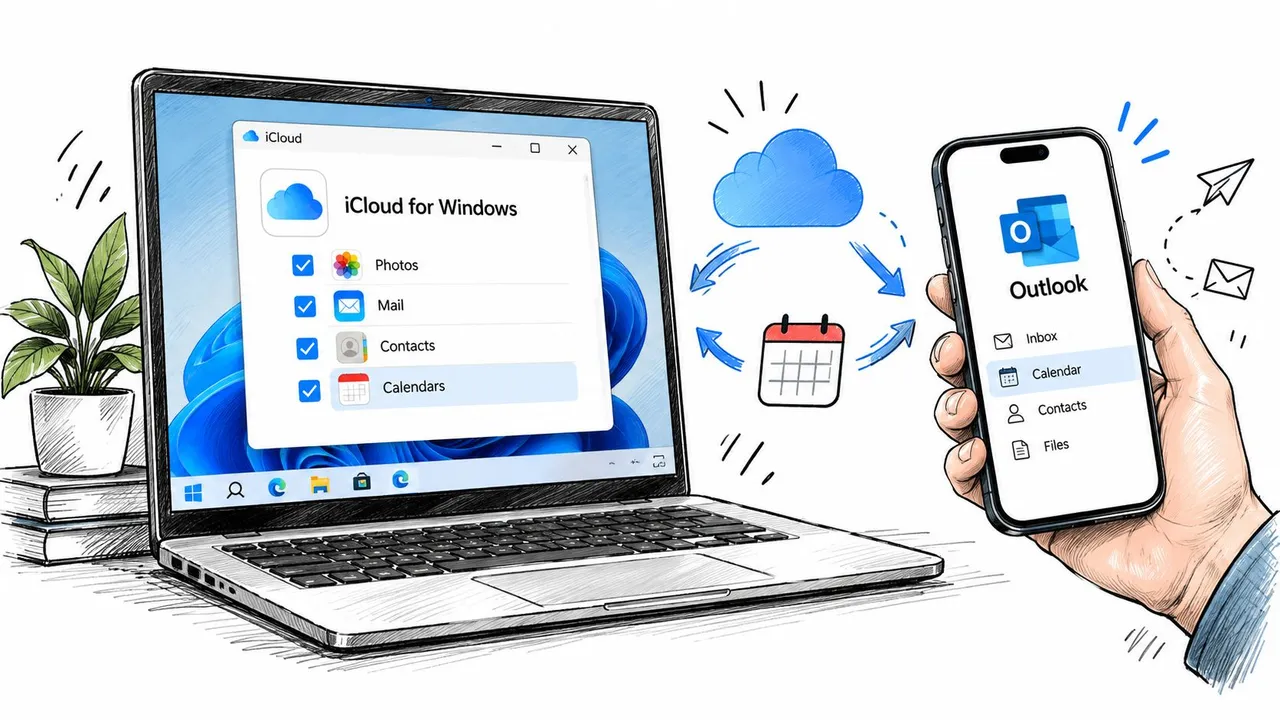
This path can move events between Outlook and iCloud, but it isn’t identical to a perfect live mirror. Changes may take several minutes, recurring-event edits can be less predictable, and shared Outlook mailboxes aren’t necessarily included. Treat the iCloud calendar as a connected personal calendar, not as a universal connector for every calendar visible in your organization.
Verify the entire chain
Use a three-point test:
- Outlook desktop: Confirm the test event exists in the intended iCloud calendar, not only in a local Outlook calendar.
- iCloud.com: Check that the event reached the Apple Account’s server-side calendar.
- iPhone or Mac: Confirm the same iCloud calendar is enabled in the Calendar app.
If the event appears in Outlook but not at iCloud.com, the Windows bridge hasn’t completed its job. If it appears at iCloud.com but not on the iPhone, check the Apple Account and calendar visibility settings on the device.
Syncing Outlook and Apple Calendar on Mac and iPhone
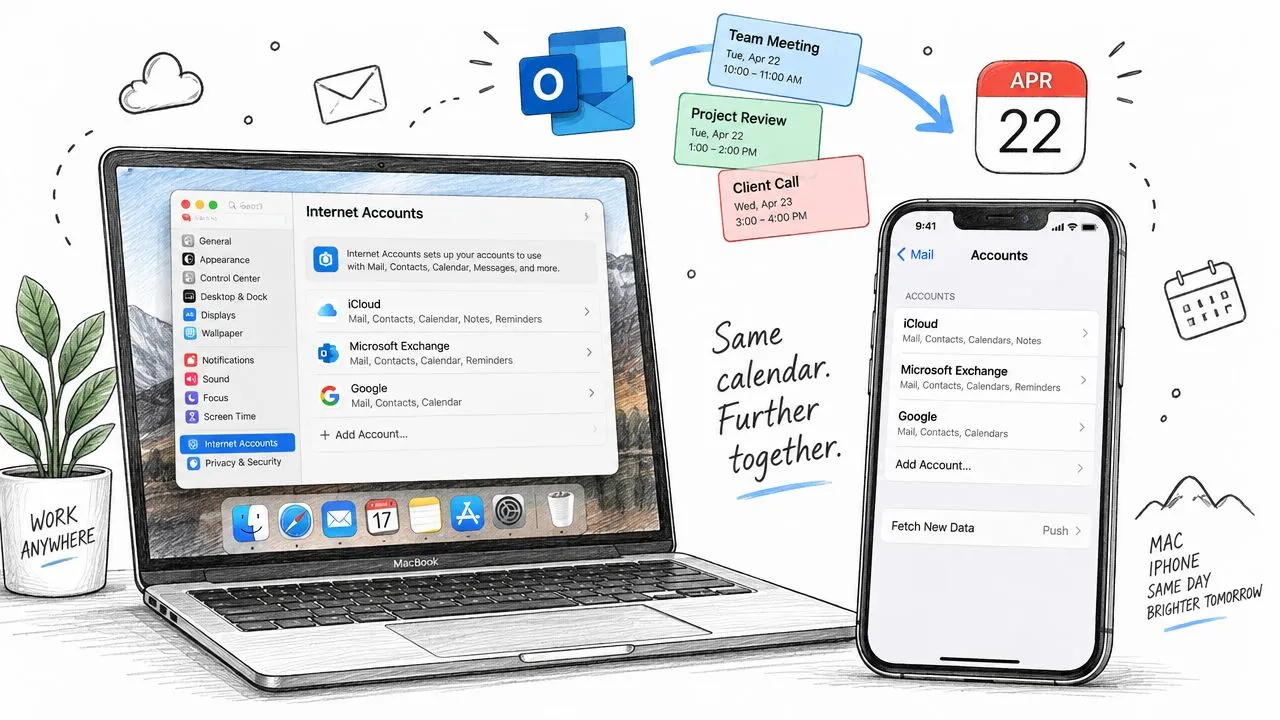
Mac and iPhone users can often avoid a separate bridge when the calendar they need is a Microsoft account. Instead of trying to add iCloud as a CalDAV account in Outlook for Mac, add the Outlook.com or Microsoft 365 account to Apple’s account settings.
On macOS, open System Settings, go to Internet Accounts, and choose the Microsoft account type that matches your mailbox. Enable Calendars when macOS presents the available services. On iPhone, open Settings, choose Mail, then Accounts, select Add Account, and choose Outlook.com or the Microsoft Exchange option appropriate to your organization. Turn on Calendars after authentication.
The account type matters. Adding the mailbox as IMAP provides email access, but it doesn’t provide calendar synchronization. Exchange ActiveSync-based setup is the route that can expose supported Microsoft calendars to Apple Calendar.
Know what may not carry across
This setup can display Microsoft calendars in Apple Calendar, but it may not reproduce every Outlook feature. Free/busy lookups can fail or lag, color labels may not transfer consistently, and reminder defaults can differ between Outlook and Apple Calendar.
Meeting invitations can also show different states temporarily. An invitation accepted in Outlook may remain tentative on an iPhone until the account refreshes. If the account is authenticated correctly but the calendar remains stale, toggle Calendars off and on for that account, then reopen the Calendar app.
For a clean check, edit an Outlook event on the web and wait for it to appear in Calendar on the paired Apple device. Use a specific test event with a distinctive title, then confirm that you edited the Microsoft calendar rather than a local or iCloud calendar. For a related device workflow, see how to sync a calendar between a MacBook and iPhone.
Using a Calendar Subscription as a One-Way Bridge
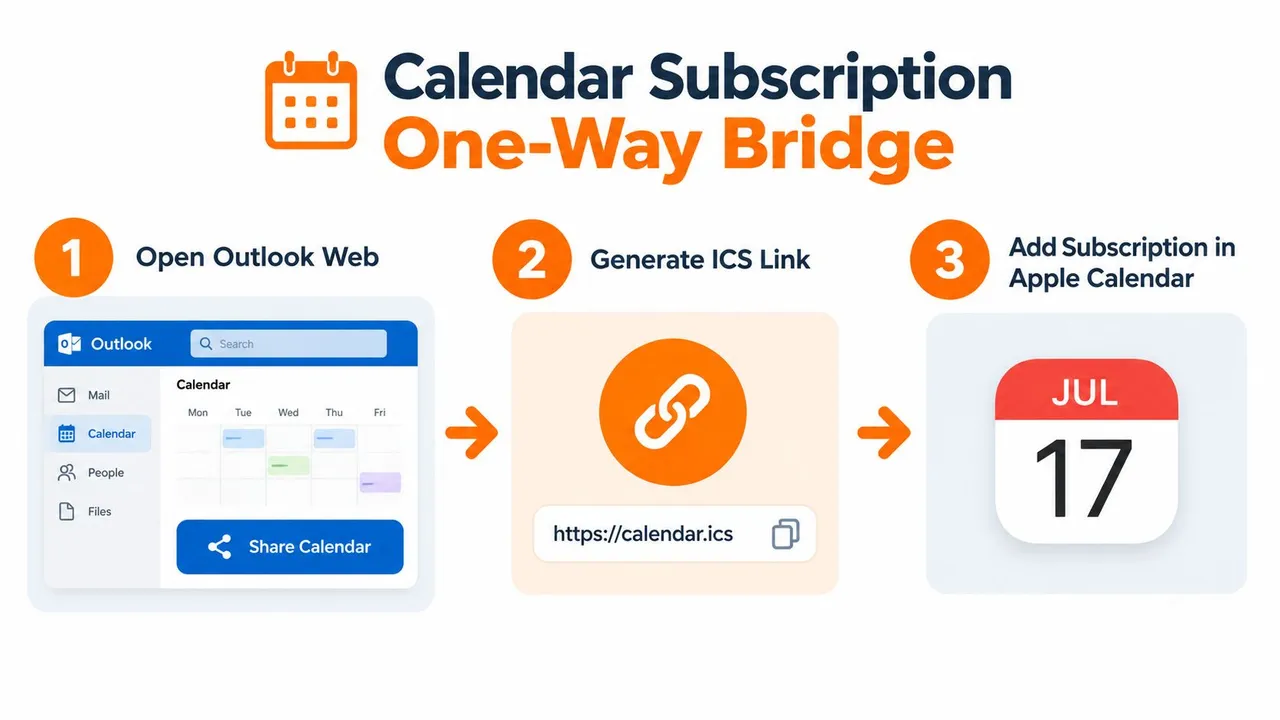
An ICS subscription is the practical fallback when you only need to see one calendar inside another app. It doesn’t attempt to reconcile two accounts. It publishes a feed from one calendar and lets another application retrieve that feed.
To publish an Outlook calendar, open Outlook on the web and go to Settings, Calendar, Shared calendars, and Publish. Select the calendar and permissions level, then copy the ICS link. In Apple Calendar on Mac, choose File, New Calendar Subscription, and paste the address. On iPhone, use Settings, Calendar, Accounts, Add Account, Other, and Add Subscribed Calendar, then enter the ICS URL.
The result is deliberately limited:
- Read-only events: You can view appointments but can’t edit the source through the subscription.
- No attendee management: Accepting invitations or changing participants isn’t supported through the feed.
- Provider-controlled refresh: The subscriber checks for updates according to its own behavior and the source’s publishing rules.
- Privacy exposure: Anyone with a public feed URL may be able to view the information included in that feed.
The reverse direction is also possible for read-only visibility. Publish an iCloud calendar as a public calendar, then add it to Outlook on the web through Add calendar, From internet. Microsoft notes that the subscribed calendar can take a few minutes to appear in Outlook for Mac after it has been added, which reinforces the central trade-off: this is a feed, not a live two-way connection. The limitation is also covered in this guide to the ICS file type.
Don’t use an ICS subscription when you need to edit an event from both platforms. If the publisher still contains an event, the subscriber will continue to receive it. Removing the subscription doesn’t delete the source event, and changing the display in Apple Calendar won’t modify Outlook.
Common Sync Problems and How to Fix Them
Most failed setups fall into a small number of categories: the wrong account type, expired authentication, restricted event history, or duplicated data created during repeated troubleshooting.
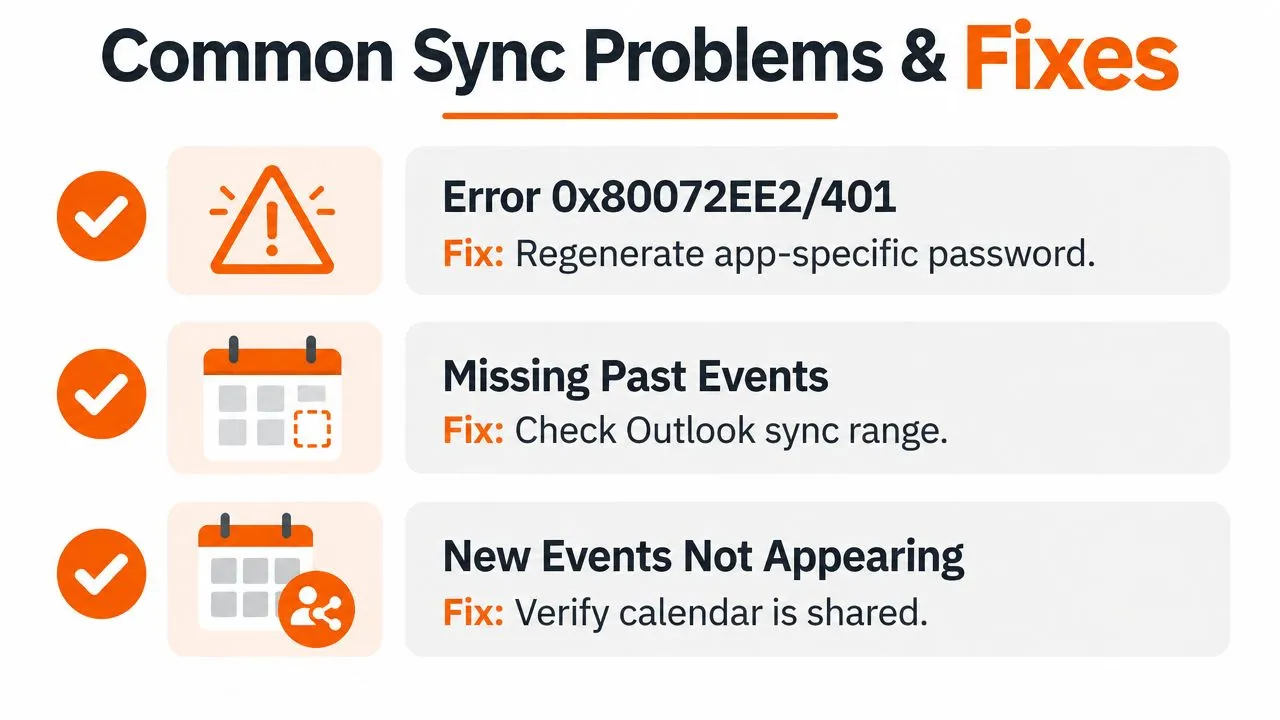
Use this checklist before removing every account and starting over:
- Authentication errors: iCloud for Windows may display an error such as
0x80072EE2or an HTTP 401 response. Regenerate the required app-specific password and authenticate again. Microsoft’s newer Outlook apps are moving toward an OAuth 2.0 sign-in flow for iCloud access, so update the Outlook application if it presents an outdated authentication prompt, as described in Microsoft’s iCloud access announcement. - Older events missing: Check the synchronization range in the relevant client. A connection may be active even when the app displays only a limited history window.
- Duplicate events: Repeatedly disabling and re-enabling calendar synchronization can create duplicates. Remove the duplicate set, then enable the connection once and allow it to rebuild.
- Mac account verification loops: If Outlook requires multifactor authentication, complete authentication for the Mac account itself. A successful sign-in on Windows doesn’t automatically authorize the Mac.
- IMAP-only iPhone setup: Remove the incorrectly added Microsoft account from iOS Mail, then add it again using Outlook.com or Exchange rather than IMAP.
Three smaller mismatches cause ongoing confusion. Reminder defaults may differ, so inspect alert times on a test event. Calendar colors often belong to the destination app and may not transfer. Shared-calendar visibility can disappear when the user has access through delegation but adds only the primary account.
Microsoft’s guidance confirms that Outlook for Mac doesn’t directly support iCloud CalDAV synchronization, and Apple and Microsoft continue to direct users toward separate setup paths. That product boundary is why changing passwords or refreshing calendars won’t fix an incompatible account model, as reflected in Microsoft’s support discussion about Outlook and iCloud calendar compatibility.
When a Real-Time Sync Service Is the Better Choice
Native options work well when one application only needs to display a supported account. They become awkward when two independent calendars must stay aligned after edits on either side.
A real-time bridge is the practical choice for two-way or multi-way synchronization, especially when users need private events to block availability across work and personal calendars. One example is SyncThemCalendars, which connects Microsoft Outlook or Office 365 calendars with Apple iCloud calendars and supports configurable one-way, two-way, or multi-way event copying. Its real-time calendar sync workflow is aimed at cases where a subscription feed isn’t sufficient.
Configure the bridge around calendar ownership
Connect Outlook as a Microsoft 365 or Outlook.com account through OAuth. Connect Apple Calendar through the iCloud CalDAV endpoint using an app-specific password, not the primary Apple Account password.
Then map calendars deliberately:
- One-to-one: Work calendar to personal calendar.
- Many-to-one: Several client calendars into one availability calendar.
- One-to-many: A personal calendar copied into multiple work or team calendars.
- Direction-specific mapping: Outlook to iCloud, iCloud to Outlook, or both.
Choose privacy settings before the first copy runs. A free/busy mirror can block time without exposing titles, descriptions, locations, or attendee information. That distinction matters for assistants, consultants, and teams that need accurate availability without sharing personal appointment details.
A third-party bridge also introduces trade-offs. The service processes calendar data in transit, so organizations with strict compliance requirements must review its security and privacy terms. It adds another account and dependency, and the synchronization behavior should be tested with recurring events, cancellations, invitees, and delegated calendars before a team relies on it.
Compare the operating models
| Criterion | iCloud for Windows | CalDAV or ICS subscription | Real-time sync service |
|---|---|---|---|
| Main use | Outlook and iCloud on Windows | Read-only calendar visibility | Separate calendars that must remain aligned |
| Direction | Supported two-way personal calendar flow | Usually one-way | One-way, two-way, or multi-way |
| Editing from both sides | Possible in supported native scenarios | No | Designed for mapped calendars |
| Shared mailbox support | Limited | Feed-dependent | Depends on provider permissions |
| Privacy controls | Basic account permissions | Publisher-controlled | Often configurable by field and direction |
| Setup burden | Low to moderate | Low | Moderate, with account mapping |
| Best fit | Individual Windows users | Simple viewing needs | Mixed-device households and multi-calendar teams |
A service earns its place when native synchronization has produced duplicates, delayed updates, or incomplete visibility. It’s especially useful for households split between iCloud and Microsoft 365, assistants managing executive calendars, consultants working across client tenants, and teams that need a reliable free/busy picture rather than another calendar overlay.
If your requirement is only to see an Outlook agenda on an iPhone, add the Microsoft account natively. If you only need a reference calendar, use an ICS subscription. If you need edits to remain consistent across Outlook and Apple Calendar, map the calendars through a dedicated two-way bridge and test the privacy behavior before connecting every account.
SyncThemCalendars connects Outlook, Office 365, and Apple iCloud calendars with one-way, two-way, or multi-way mappings, plus privacy controls for sharing availability without exposing unnecessary event details. Visit SyncThemCalendars to review the available synchronization options and choose the bridge that matches your calendar setup.
Ready to sync your calendars?
Keep your Google, Outlook and Apple iCloud calendars in sync automatically. 2-minute setup, no credit card required.
Get started freeKeep reading
More in Tutorials

How to Add Gmail Calendar to Outlook Without Duplicates
See how to add Gmail Calendar to Outlook by subscribing for a live view or using two-way sync, then avoid privacy leaks and duplicate events.

Export Outlook Calendar to Google: A 2026 Step-by-Step Guide
Learn how to export Outlook calendar to Google with clear steps for ICS and CSV imports, recurring-event checks, and verification tips that work in 2026.

How to Synchronize Outlook Calendar Across Platforms
Learn how to synchronize Outlook calendar events with Google and Apple iCloud. Master two-way sync, privacy controls, and real-time availability mapping.